Sharing Storage Folders and Access Control
You may need to share the contents of storage folders with other users or project members to collaborate. For this purpose, Backend.AI provides flexible folder sharing feature.
Share storage folders with other users
Let's learn how to share your personal Storage folder with other users. First,
log in to User A's account and go to the Data page. There are several
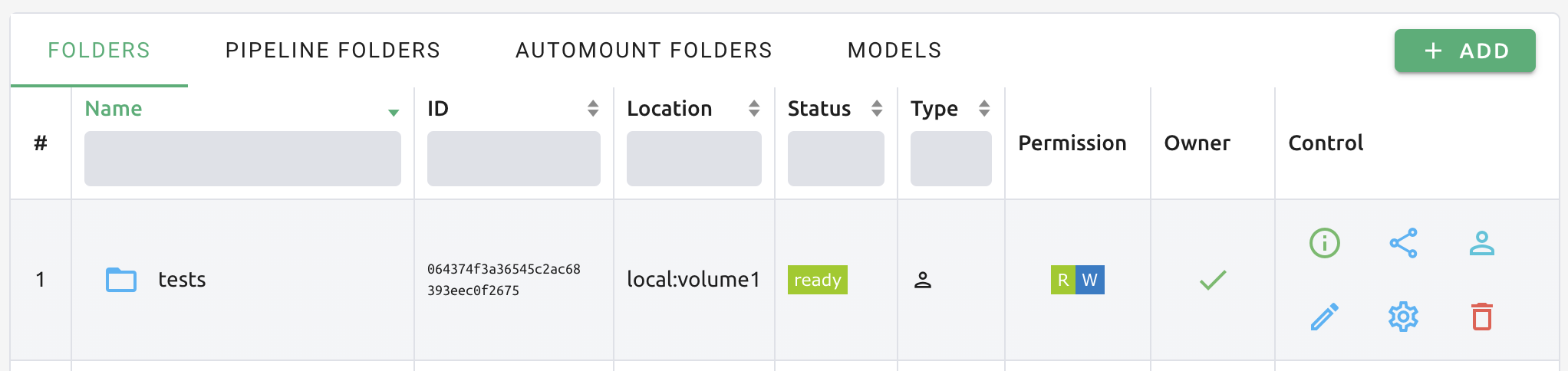
folders, and we want to share a folder named tests to User B.
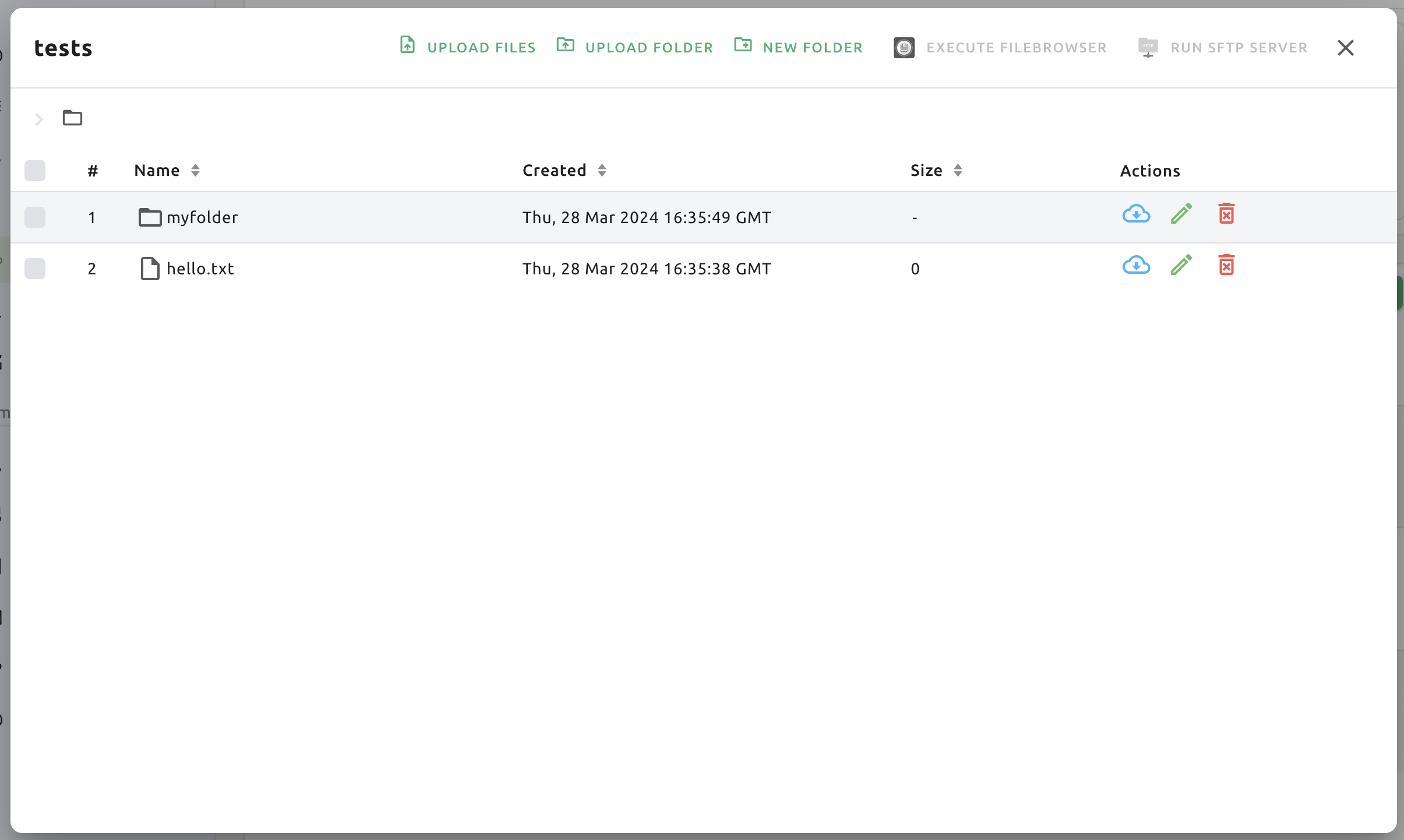
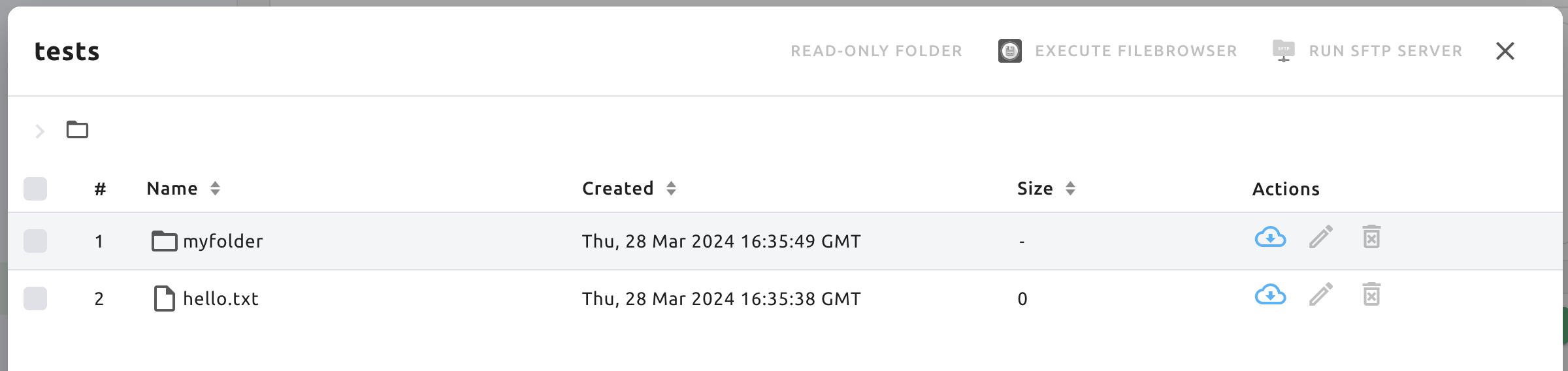
Inside the tests folder you can see files and directories like hello.txt
and myfolder.
Confirm that the tests folder is not listed when logging in with User B's
account.

Warning
If a folder named tests already exists in User B's account, User A's
tests folder cannot be shared with User B.
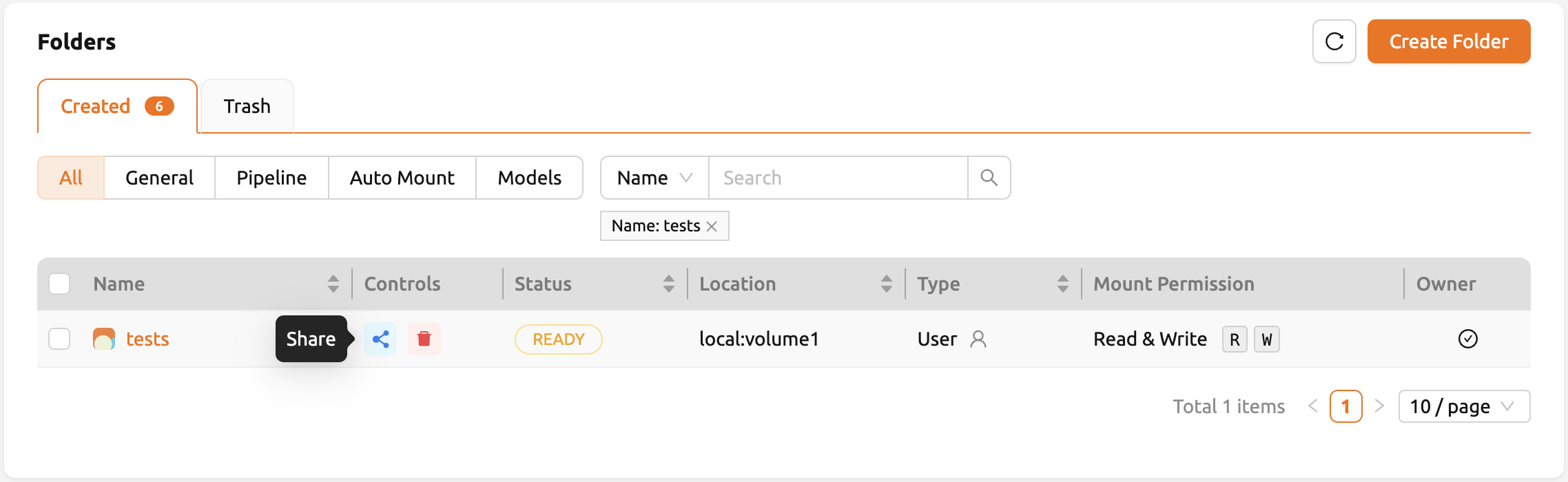
Back to User A's account,click the 'share' button in the Control column on the 'tests' folder in the list.
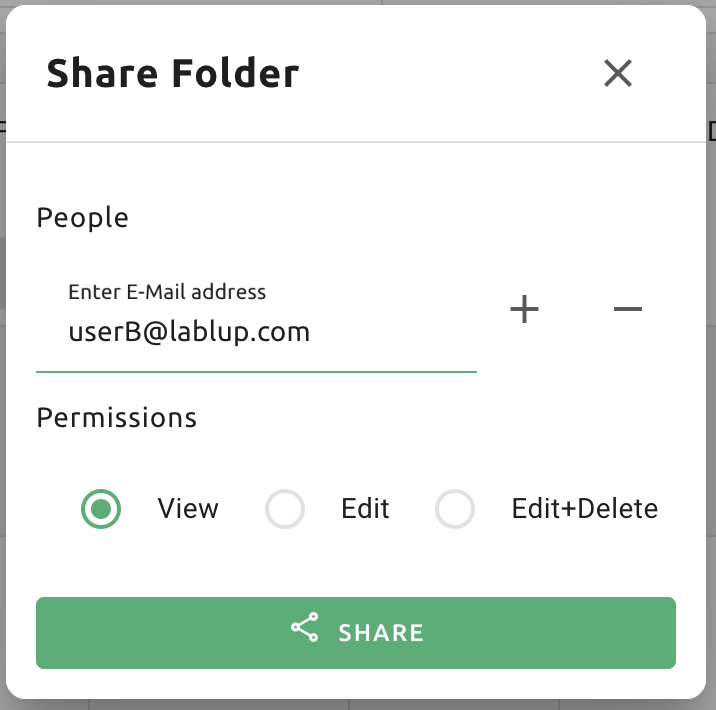
In the 'Invite User' section of the modal, enter User B's email address and select the desired permission level. If you choose 'Read Only', User B will be able to only view the folder but not modify it. If you select 'Read & Write', User B will be able to both view and modify the folder.
Switch back to User B's account and navigate to the Data page. The number of invited folders can be checked in the Storage Status panel.
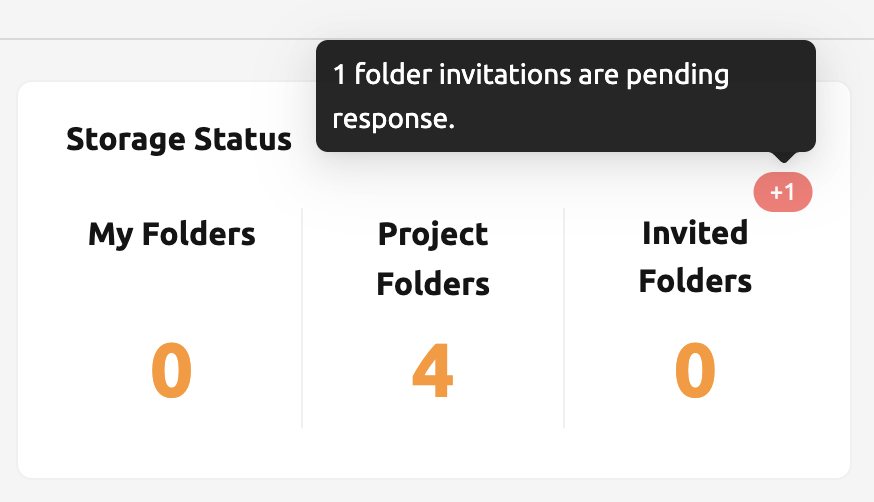
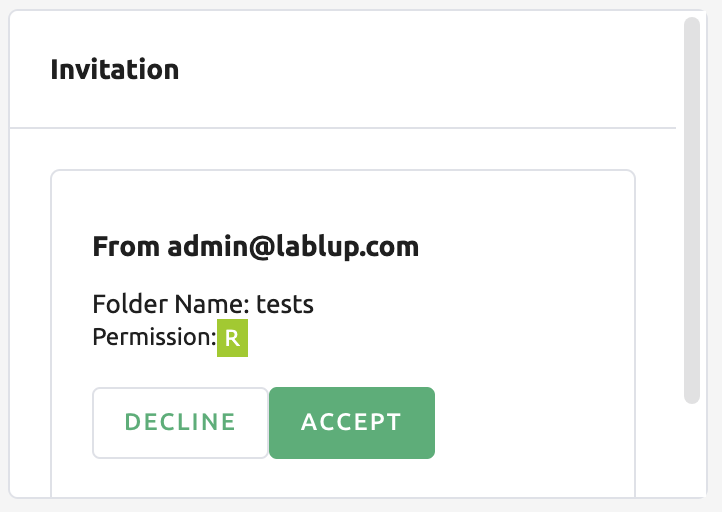
Clicking the badge opens an invitation list modal, where pending folder invitations can be accepted or declined.
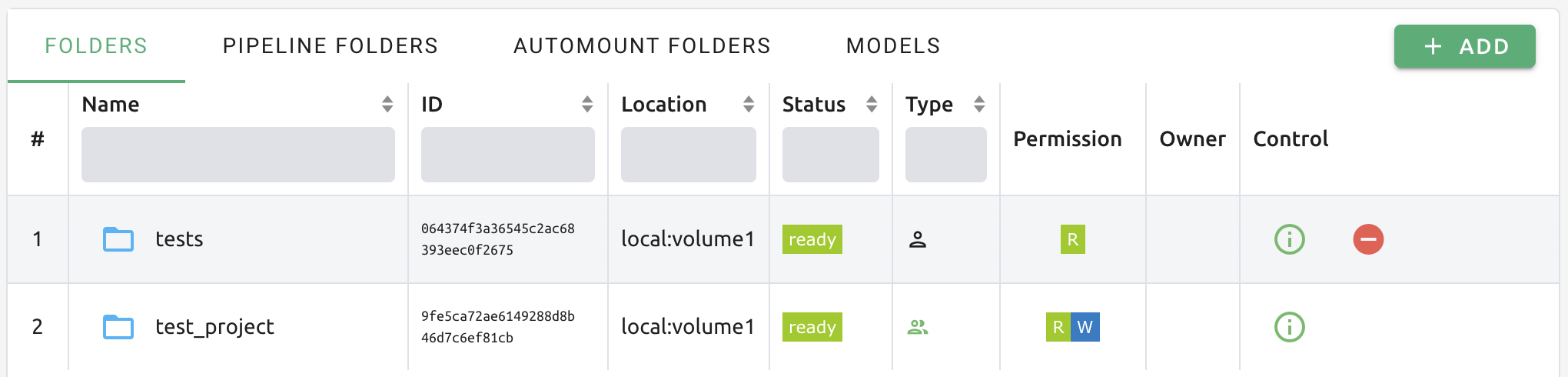
Go to the Data page and check that the tests folder is displayed in
the list. If you don't see it on the list, try refreshing your browser page.
Since you have accepted the invitation, you can now view the contents of User
A's tests folder in User B account. Unlike folders created by User B,
shared folders appear without the check icon in the Owner column. You
can also see the 'Read only' mark displayed in the Mount Permission column.
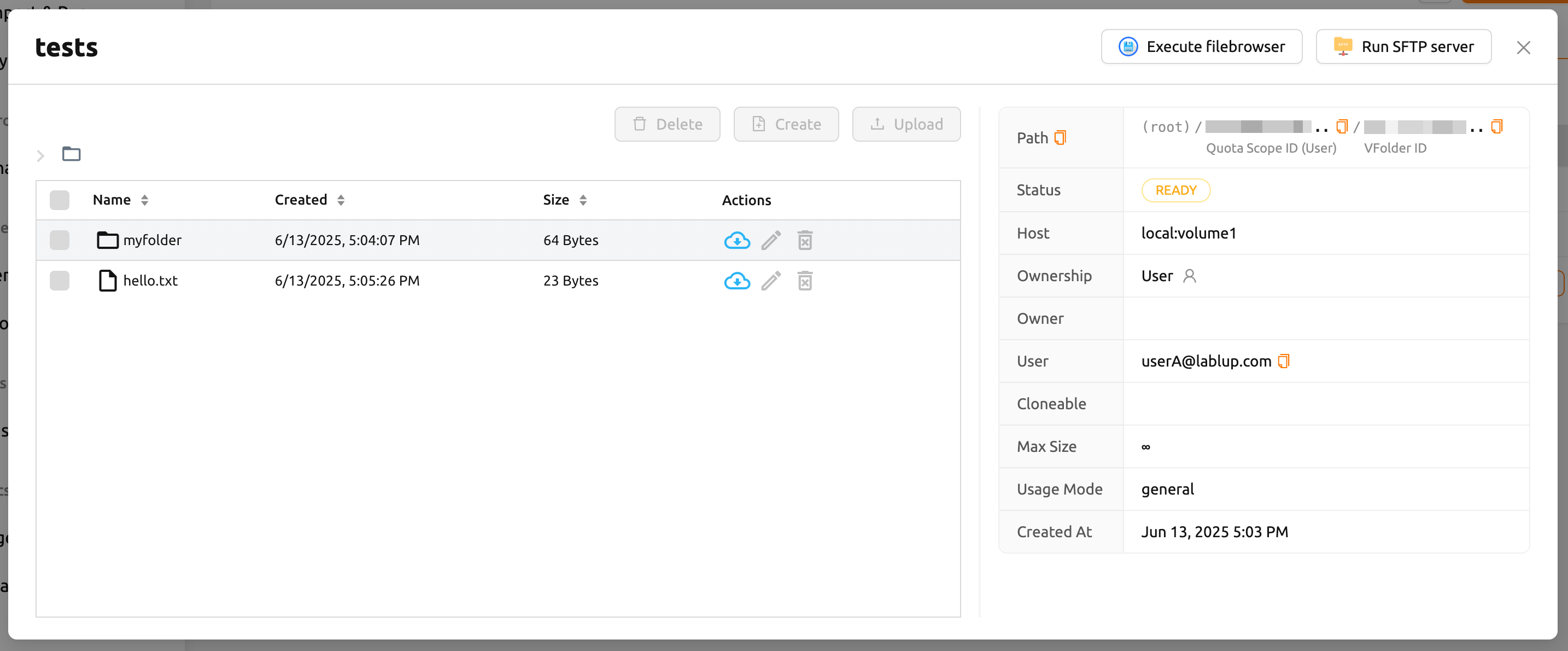
Let's navigate inside the tests folder by clicking the folder icon in the
Control panel of tests. You can check the hello.txt and myfolder
that you checked in the User A's account again.
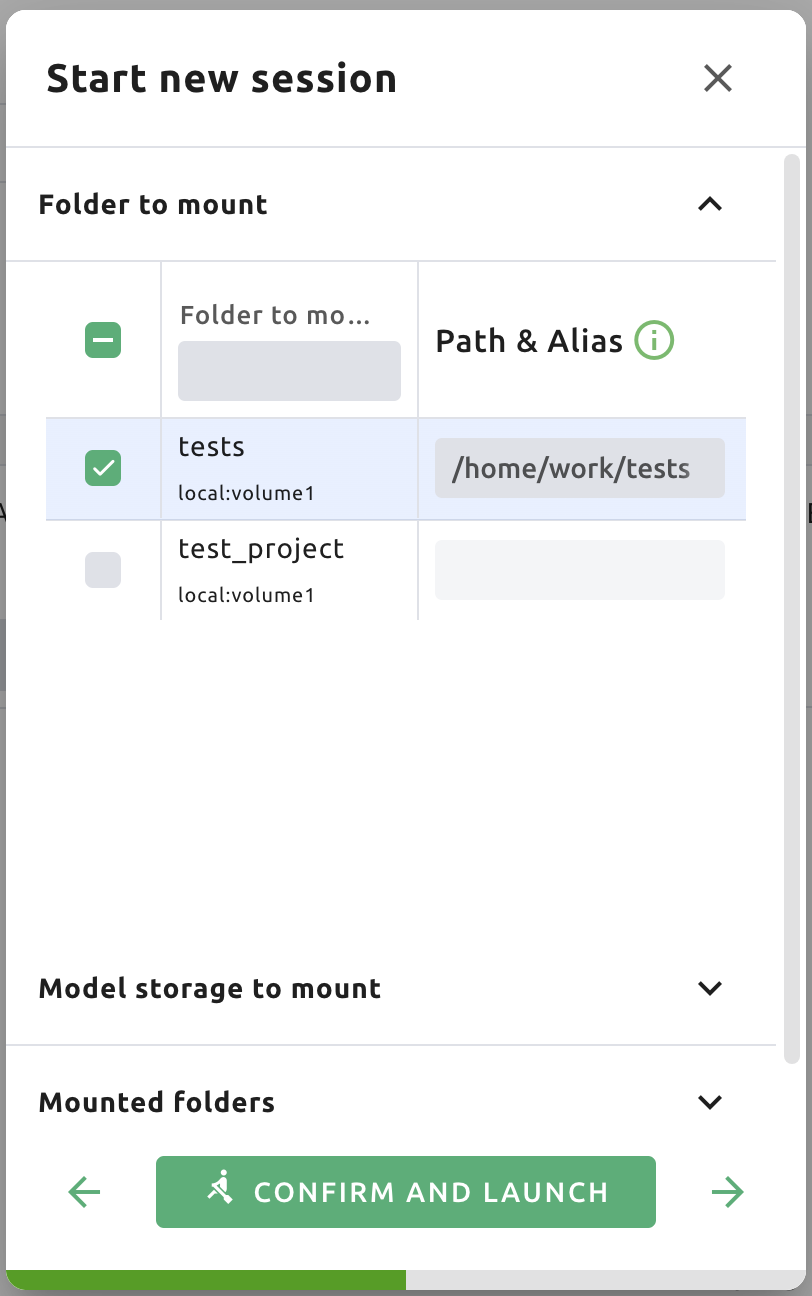
Let's create a compute session by mounting this storge folder with the User B's account.
Note
From version 24.09, Backend.AI offers an improved version of the session launcher (NEO) as default. If you want to use the previous session launcher, please refer User Settings section. For instructions on how to use it, please refer to the following link. If you want to know more about the NEO session launcher, please refer Create Session
After creating a session, open the web terminal and check that the tests
folder is mounted in the home folder. The contents of the tests folder are
displayed, but attempts to create or delete files are not allowed. This is
because User A shared it as read-only. User B can create a file in the tests
folder if it has been shared including write access.
This way, you can share your personal storage folders with other users based on your Backend.AI email account.
Note
Backend.AI also provides sharing project folder to project members. To See the detail, go to sharing a project storage folder with project members.
Adjust permission for shared folders
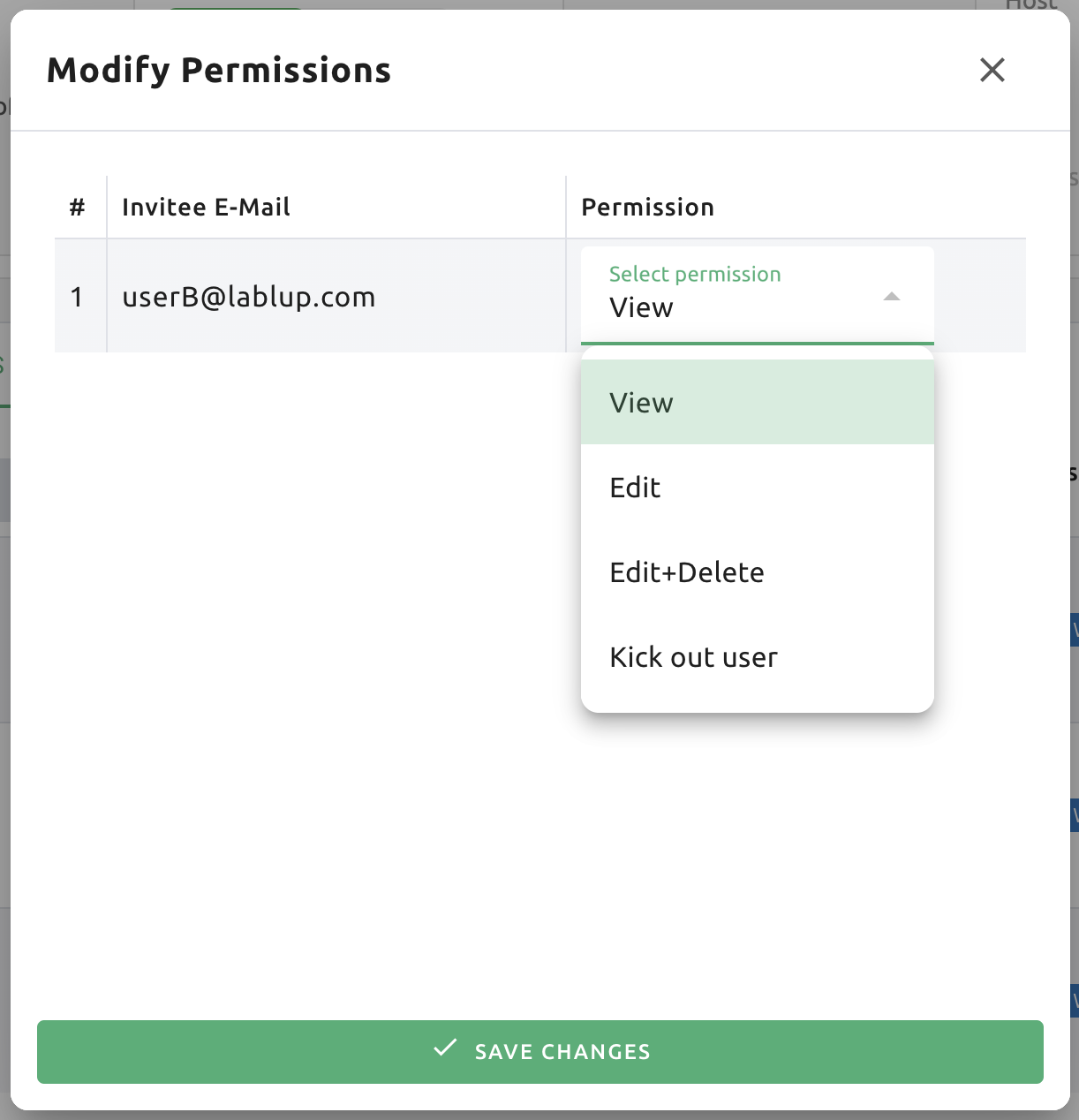
You can modify the permissions of a shared user from the folder sharing modal. Click Select permission to set the sharing permission.
View: The invited user has read-only access to the folder.
Edit: The invited user has read and write access to the folder. The user cannot delete folders or files.
Note
Renaming folder itself is available only for the owner, even if the user has granted Edit permission. Please note that Edit permission does not provide renaming folder.
Stop sharing a folder
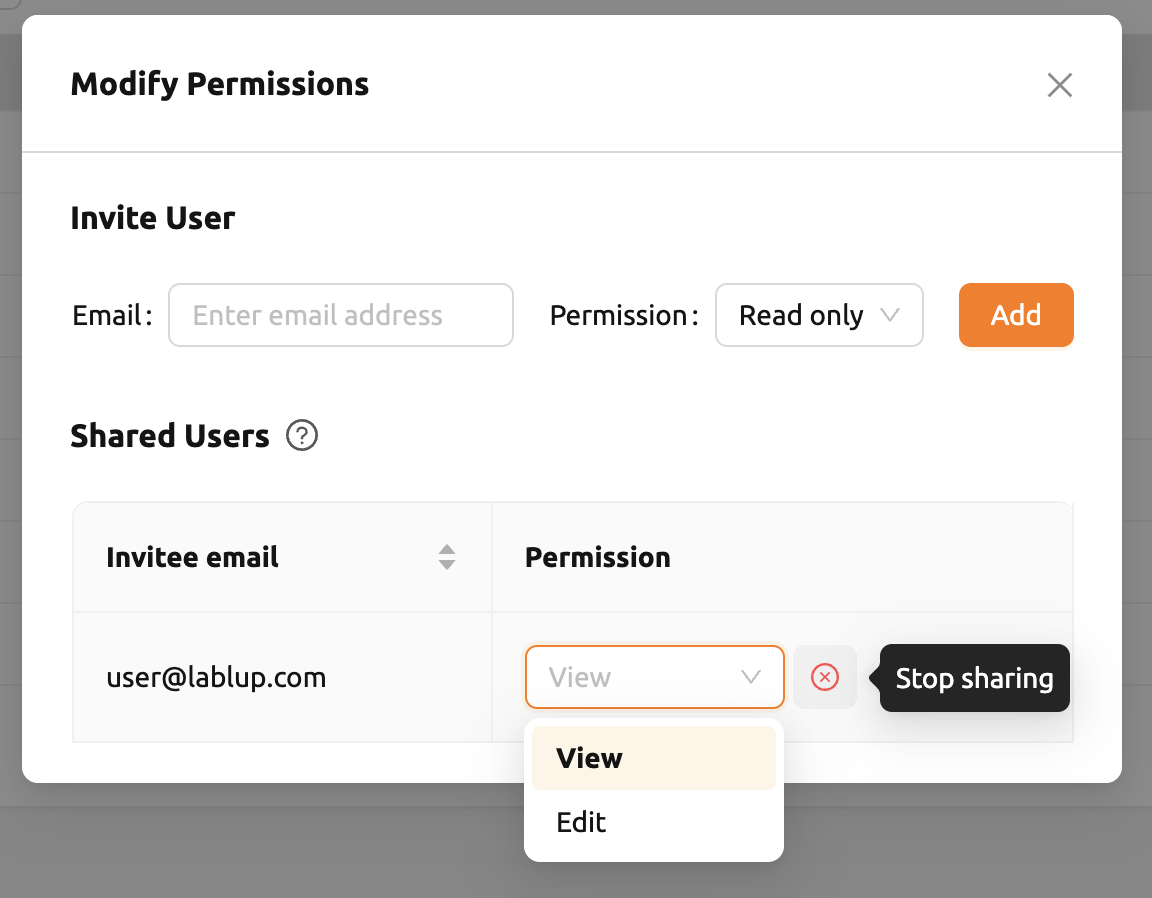
To stop sharing a folder as the inviter, open the file list and click the 'Share' button in the control column for the folder. In the permission settings modal, click the 'Stop sharing' button next to the permission selector.
If access to a shared folder is no longer needed as an invitee, select the 'Share' button next to the folder in the folder list, then click 'Leave the shared folder' to remove access.
