User Settings
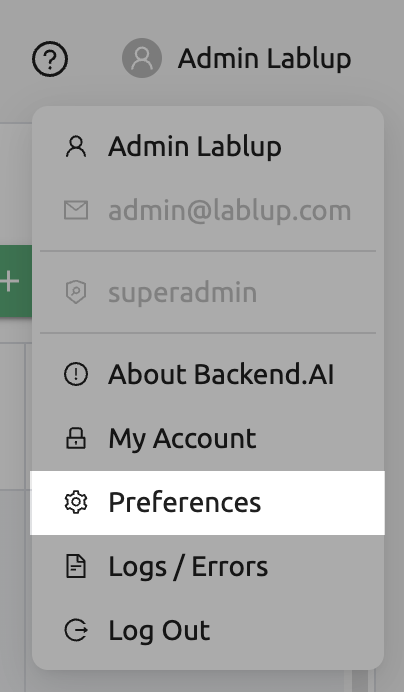
The user settings page is accessed by selecting the Preferences menu that appears after clicking the person icon at the top right. Users can change the preferred Environment from the language setting, SSH keypair management, editing user config script, and even to using Beta features.
GENERAL tab
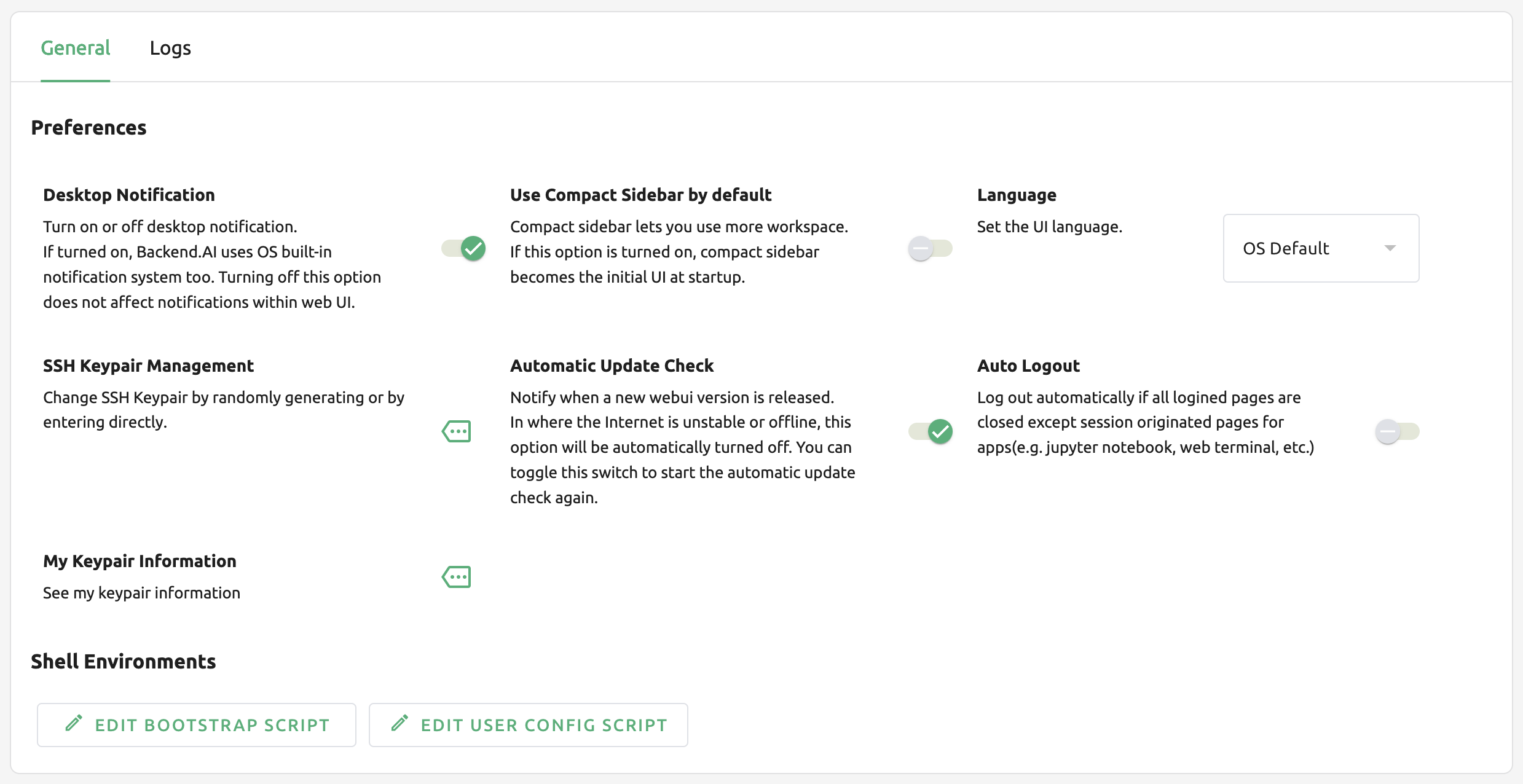
There are lots of preference menu in GENERAL tab. you can search it by search field on top of the section, or you may just filter that you changed by clicking Display Only Changes. If you want to rollback the changes to before, click Reset button on the right top of the section.
Enables Desktop Notifications
Enables or disables the desktop notification feature. If the browser and operating system support it, various messages that appear in the WebUI will also appear in the desktop notification panel. If disabled from the operating system during the first run, the desktop message may not be displayed even if the option is turned on here. Regardless of the value of this option, the notification inside the WebUI still works.
Language
Set the language displayed on the UI. Currently, Backend.AI supports more than five languages including English and Korean. However, there may be some UI items that do not update their language before the page is refreshed.
Default: Use the operating system's default language.
English: Set English as the default language.
Korean: Set Korean as the default language.
Brazilian Portuguese: Set Brazilian Portuguese as the default language.
Chinese (Simplified): Set Chinese (Simplified) as the default language.
Chinese (Traditional): Set Chinese (Traditional) as the default language.
French: Set French as the default language.
Finnish: Set Finnish as the default language.
German: Set German as the default language.
Greek: Set Greek as the default language.
Indonesian: Set Indonesian as the default language.
Italian: Set Italian as the default language.
Japanese: Set Japanese as the default language.
Mongolian: Set Mongolian as the default language.
Polish: Set Polish as the default language.
Portuguese: Set Portuguese as the default language.
Russian: Set Russian as the default language.
Spanish: Set Spanish as the default language.
Thai: Set Thai as the default language.
Turkish: Set Turkish as the default language.
Vietnamese: Set Vietnamese as the default language.
Note
Some of translated items may be marked as __NOT_TRANSLATED__, which
indicates the item is not yet translated for that language. Since Backend.AI
WebUI is open sourced, anyone who willing to make the translation better
can contribute: https://github.com/lablup/backend.ai-webui.
Automatic Update Check
A notification window pops up when a new WebUI version is detected. It works only in an environment where Internet access is available.
Auto logout
Log out automatically when all Backend.AI WebUI pages are closed except for pages created to run apps in session (e.g. Jupyter notebook, web terminal, etc.).
My Keypair Information
Every user has at least one or more keypairs. you can see access and secret keypair by clicking Config button below. Remember that main access keypair is only one.

SSH Keypair Management
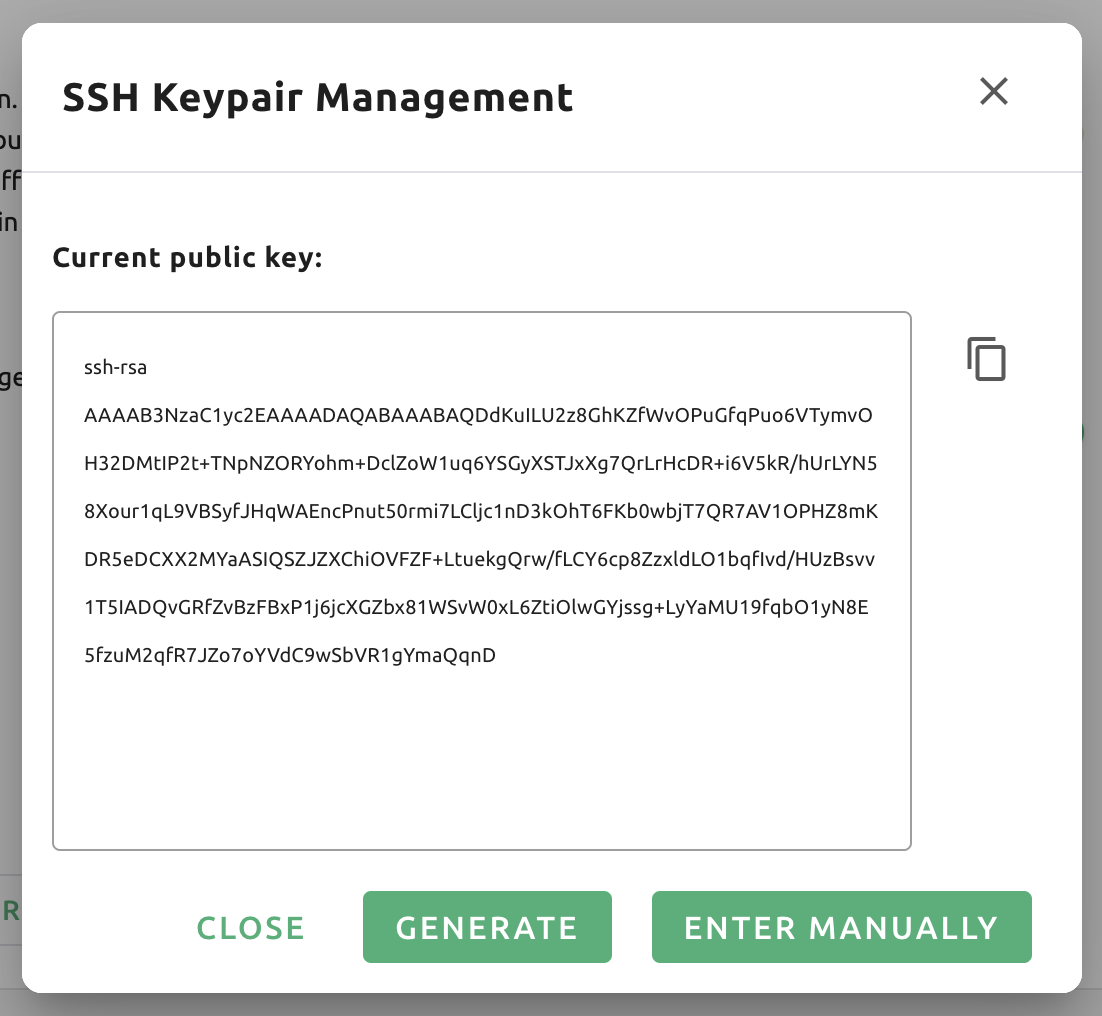
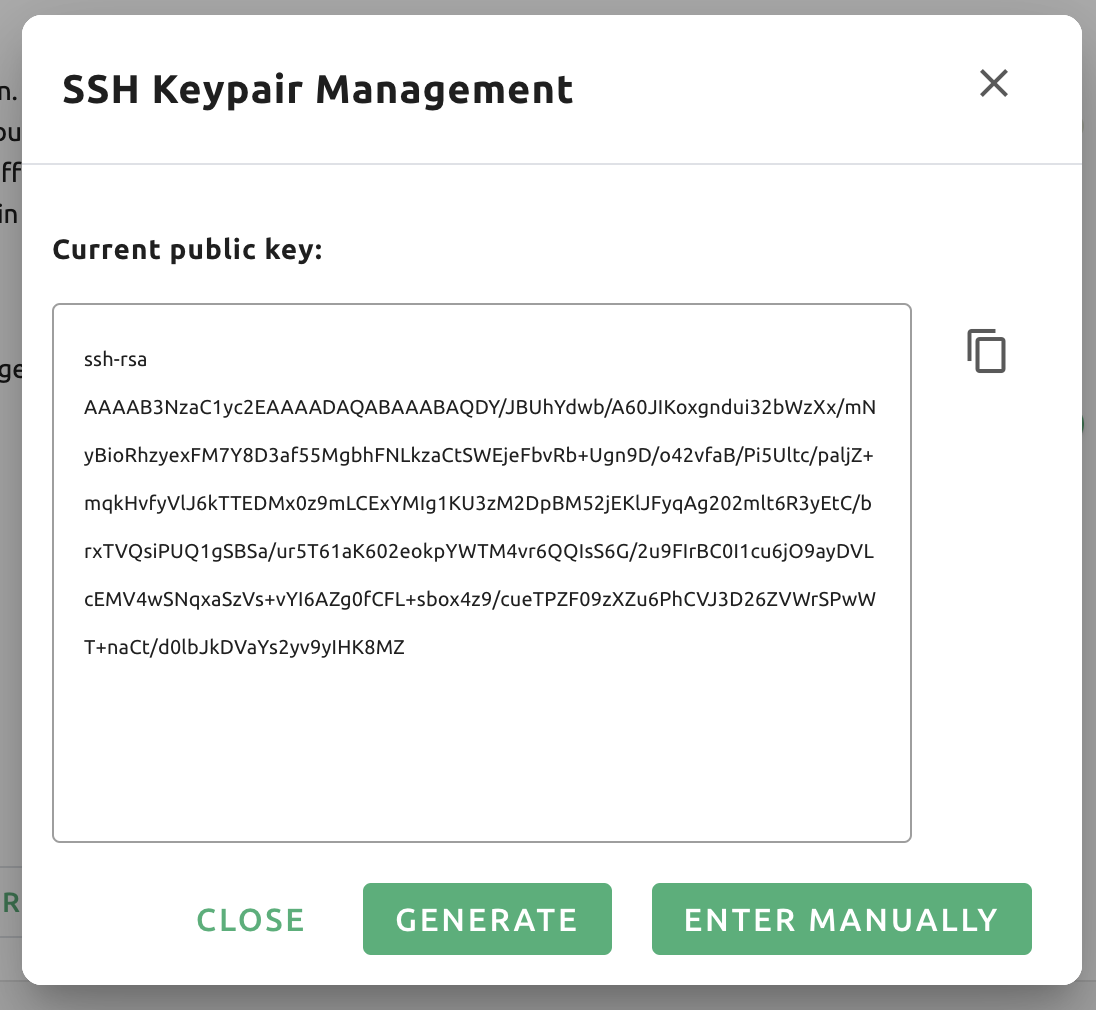
When using the WebUI app, you can create SSH/SFTP connection directly to the compute session. Once you signed up for Backend.AI, a public keypair is provided. If you click the button on the right to the SSH Keypair Management section, the following dialog appears. Click the copy button on the right to copy the existing SSH public key. You can update SSH keypair by clicking GENERATE button at the bottom of the dialog. SSH public/private keys are randomly generated and stored as user information. Please note that the secret key cannot be checked again unless it is saved manually immediately after creation.
Note
Backend.AI uses SSH keypair based on OpenSSH. On Windows, you may convert this into PPK key.
From 22.09, Backend.AI WebUI supports adding your own ssh keypair in order to provide
flexibility such as accessing to a private repository. In order to add your own ssh keypair, click ENTER MANUALLY button. Then, you will see
two text area which corresponds to "public" and "private" key.
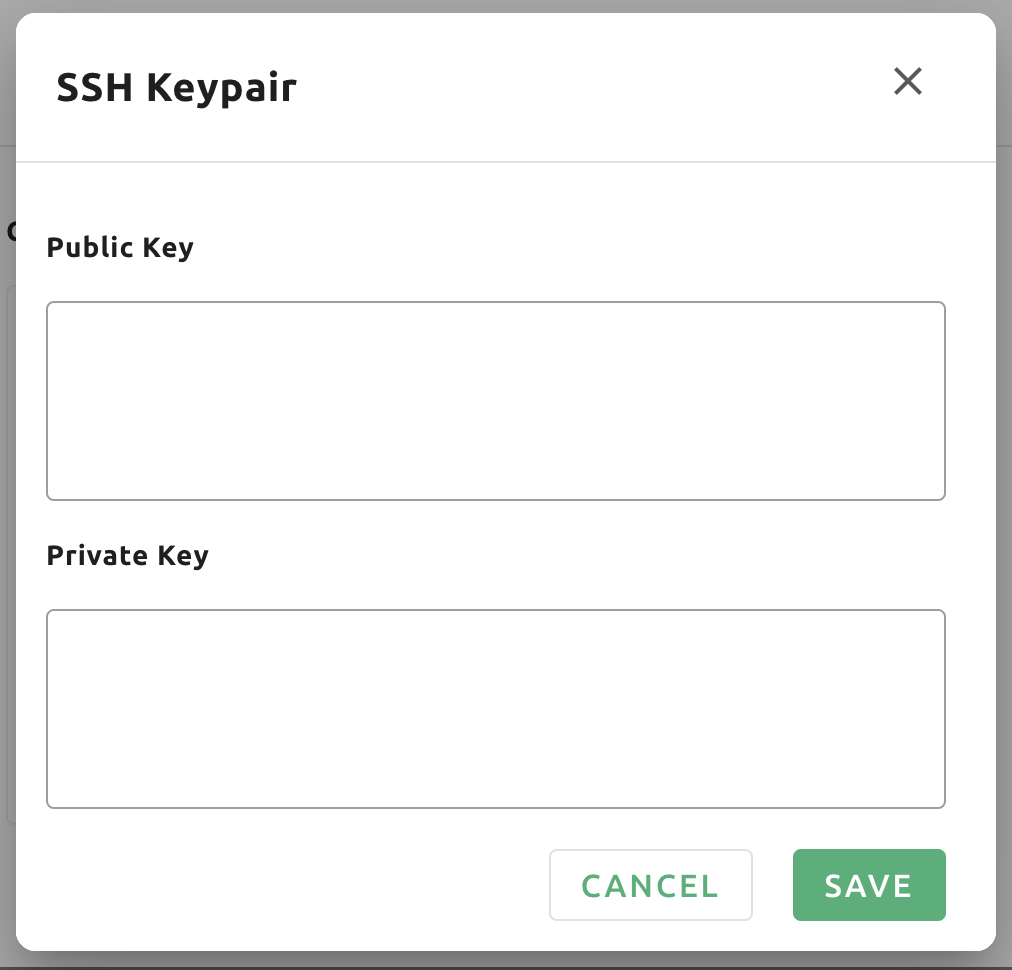
please enter the keys inside, and click SAVE button. Now you can access to backend.ai session using your own key.
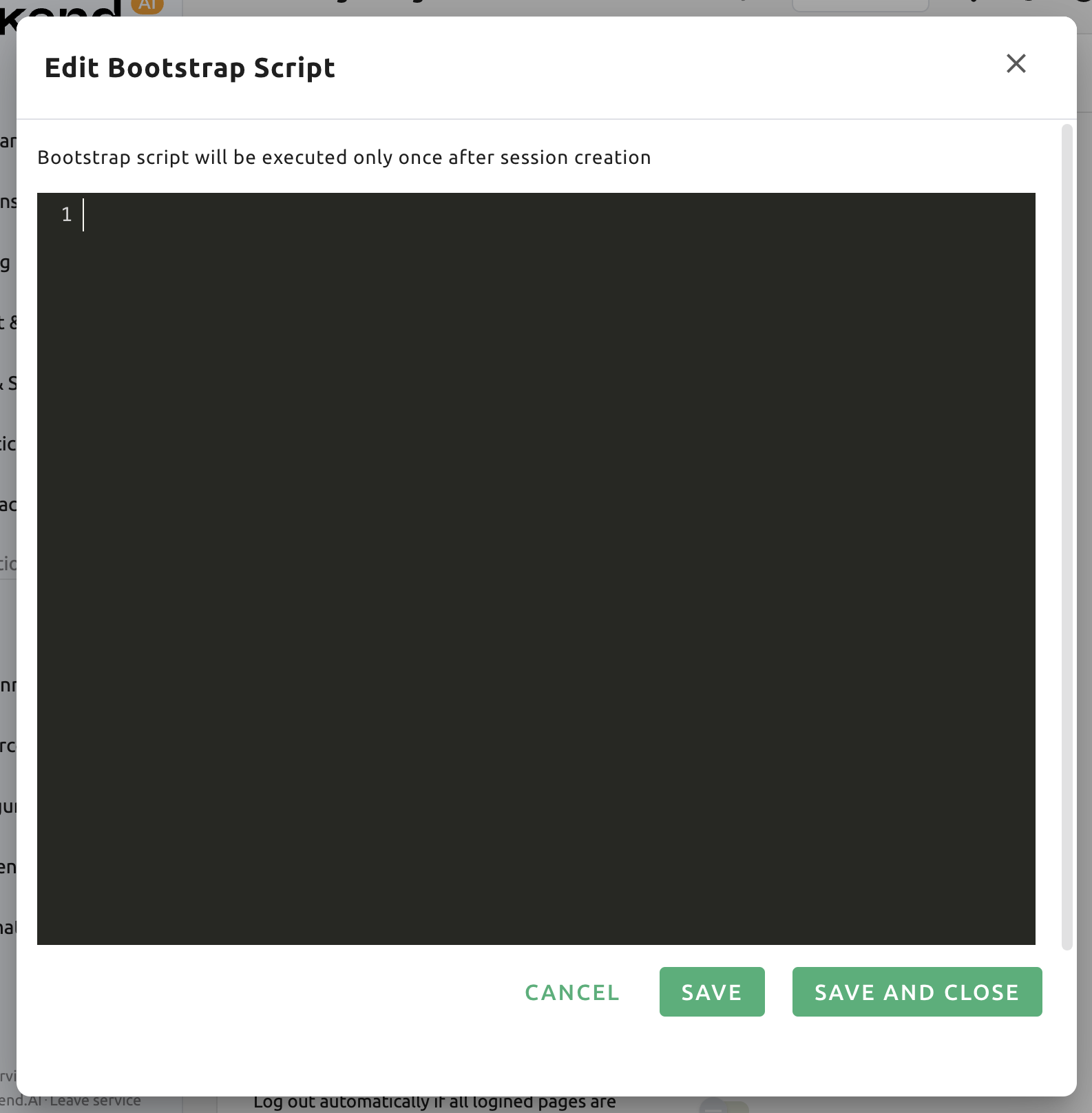
Edit Bootstrap Script
If you want to execute a one-time script just after your compute sessions started, write down the contents here.
Warning
The compute session will be at the PREPARING status until the bootstrap
script finishes its execution. Since a user cannot use the session until it
is RUNNING, if the script contains a long-running tasks, it might be
better to remove them out of the bootstrap script and run them in a terminal
app.
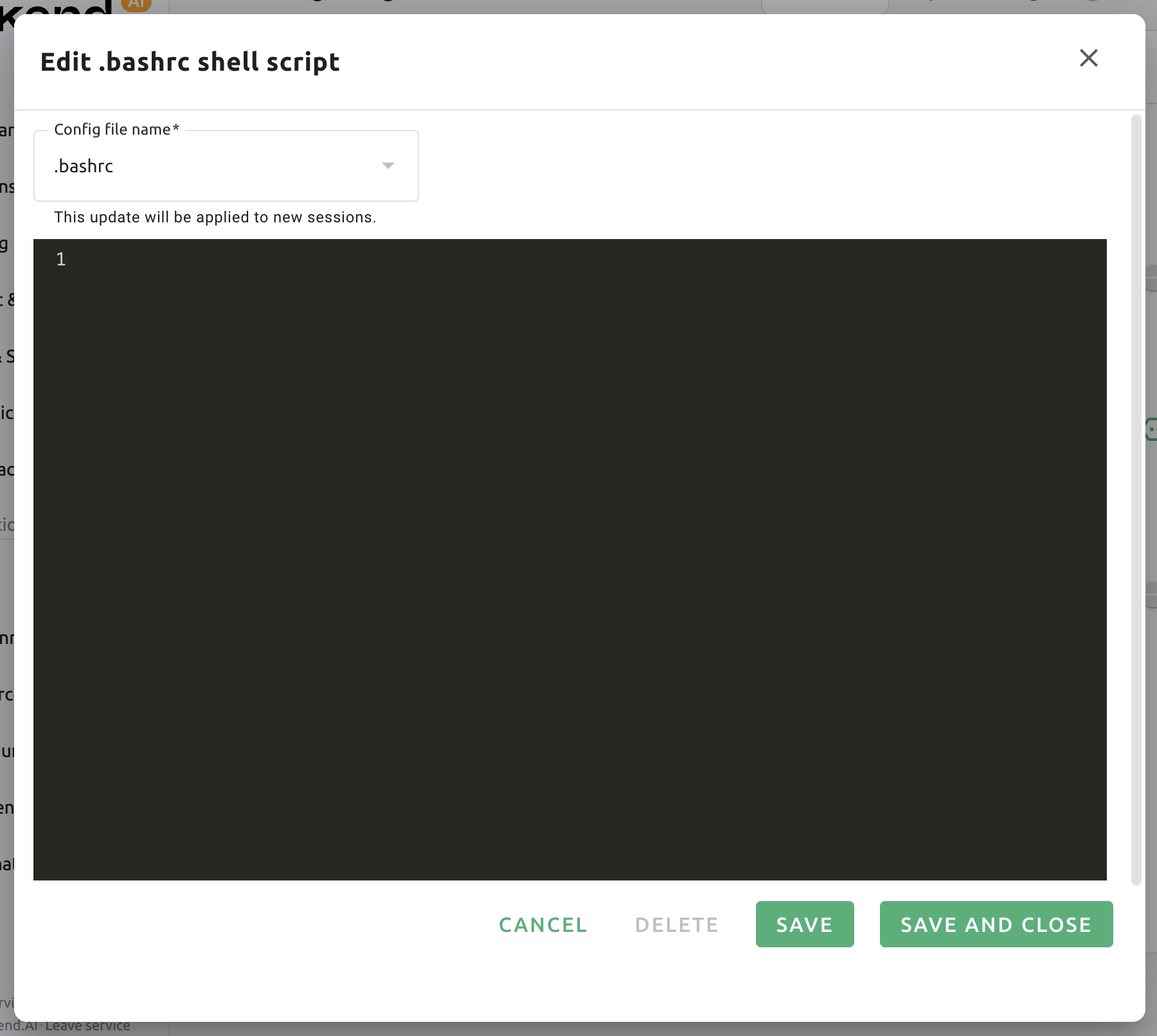
Edit User Config Script
You can write some config scripts to replace the default ones in a compute
session. Files like .bashrc, .tmux.conf.local, .vimrc, etc. can be
customized. The scripts are saved for each user and can be used when certain
automation tasks are required. For example, you can modify the .bashrc
script to register your command aliases or specify that certain files are always
downloaded to a specific location.
Use the drop-down menu at the top to select the type of script you want to write and then write the content. You can save the script by clicking the SAVE or SAVE AND CLOSE button. Click the DELETE button to delete the script.
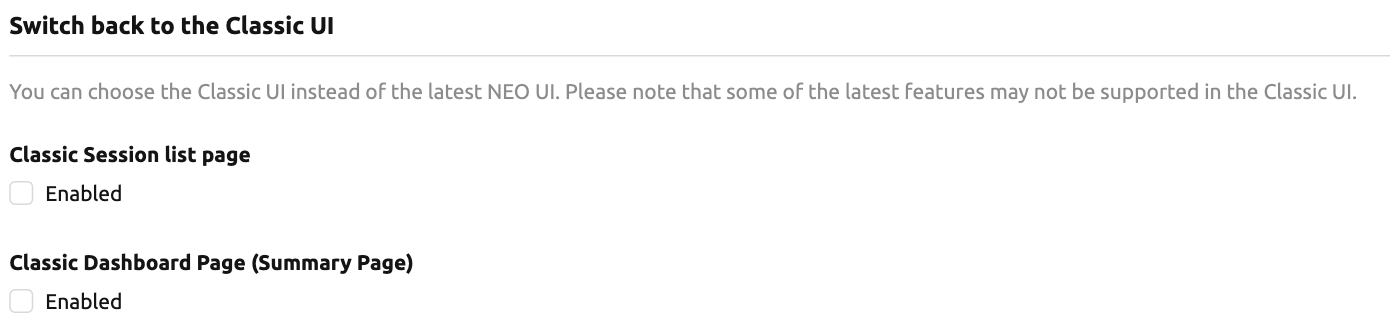
Switch back to the Classic UI
If you want to switch back to the classic Backend.AI interface, enable the following options.
Experimental Features
You can enable or disable experimental features before they are officially released.

LOGS tab
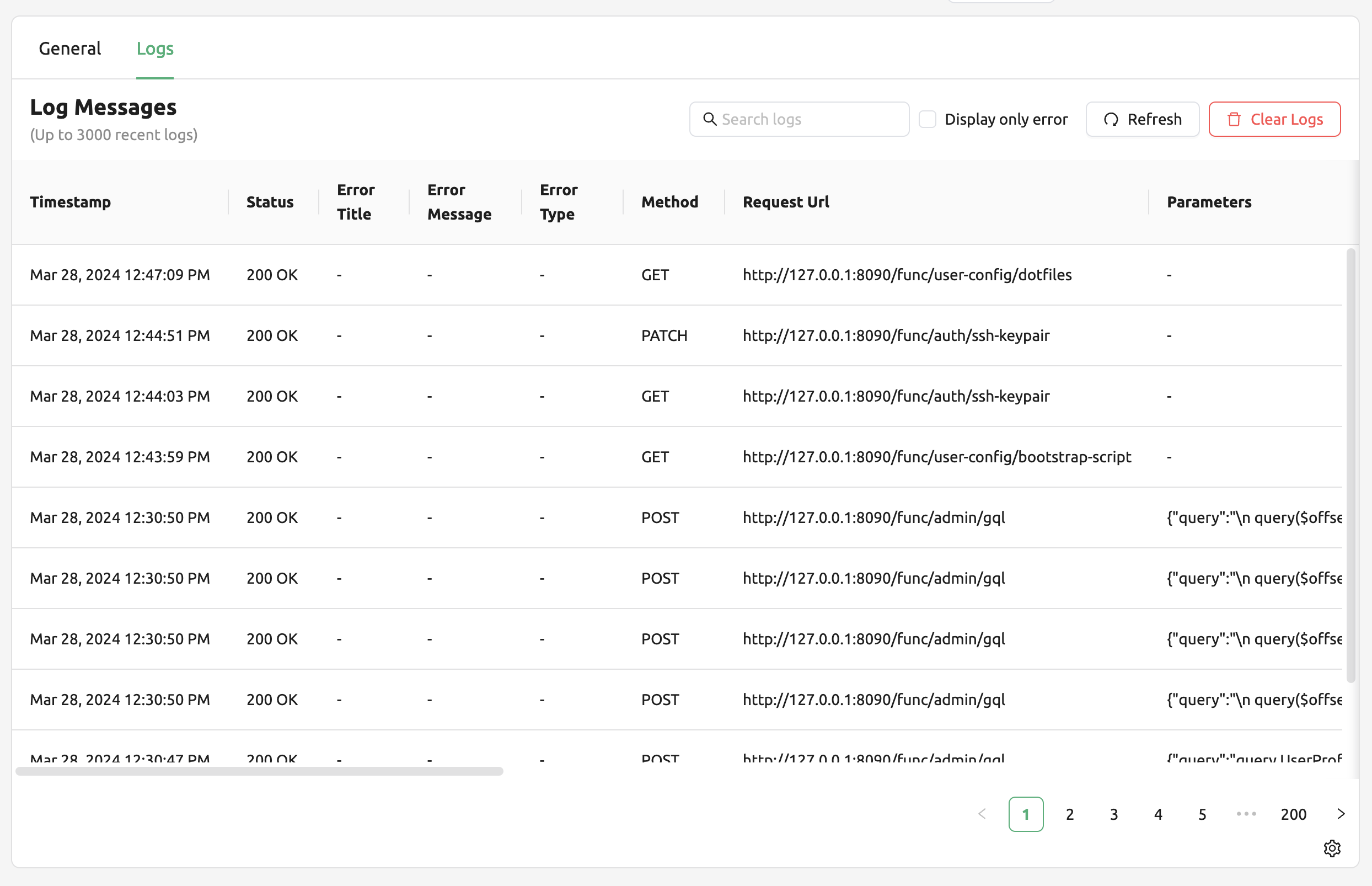
Displays detailed information of various logs recorded on the client side. You can visit this page to find out more about the errors occurred. You can search, filter the error logs, refresh and clear the logs by clicking the Clear Logs button at the top right.
Note
If you only have one page logged in, clicking the REFRESH button may not seem to work properly. Logs pages are collection of requests to the server and responses from the server. If current page is the log page, then it will not send any requests to the server except refreshing the page explicitly. To check logs are being stacked properly, please open another page and click REFRESH button.
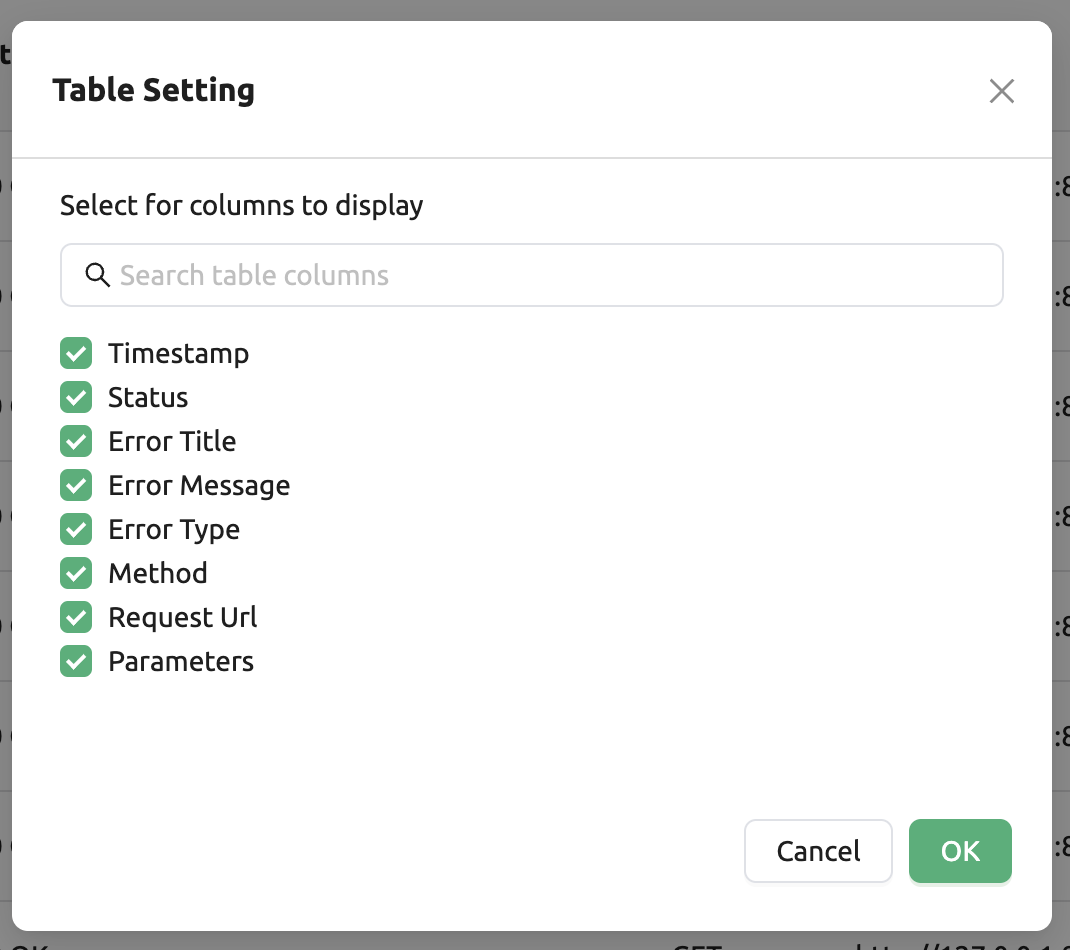
If you want to hide or show the certain columns, click the gear icon at the bottom right of the table. Then you can see below dialog to select the columns you want to see.